Support
QJump is a MacOS app which integrates closely with QLab to be able to both jump to bar numbers and read bar numbers of a musical cue. Below are the main features of the software and how to use it.
A note on old operating systems. It has come to my attention that MacOS only introduced returning milliseconds from the system time in macOS 15.6. Operating systems older than this will not be able to accurately read the time from QLab and throw an error. THere are now two buttons in the settings page to create chase cues depending on the operating system.
A note on Slices. The latest version of QJump introduced the ability to support slices. If there is a slice in the audio which QJump thinks is more than 100ms away from a bar line, there will be an error. Slices are a great way to deal with musical repeats and cuts. Using Standby cues, slices can easily be added at bar lines by using QJump to load to specific bar numbers. Slice counts of 0 are supported (cuts) but not counts of infinity. To use infinate loops, choose a number which is much higher than the number of loops you would ever need.
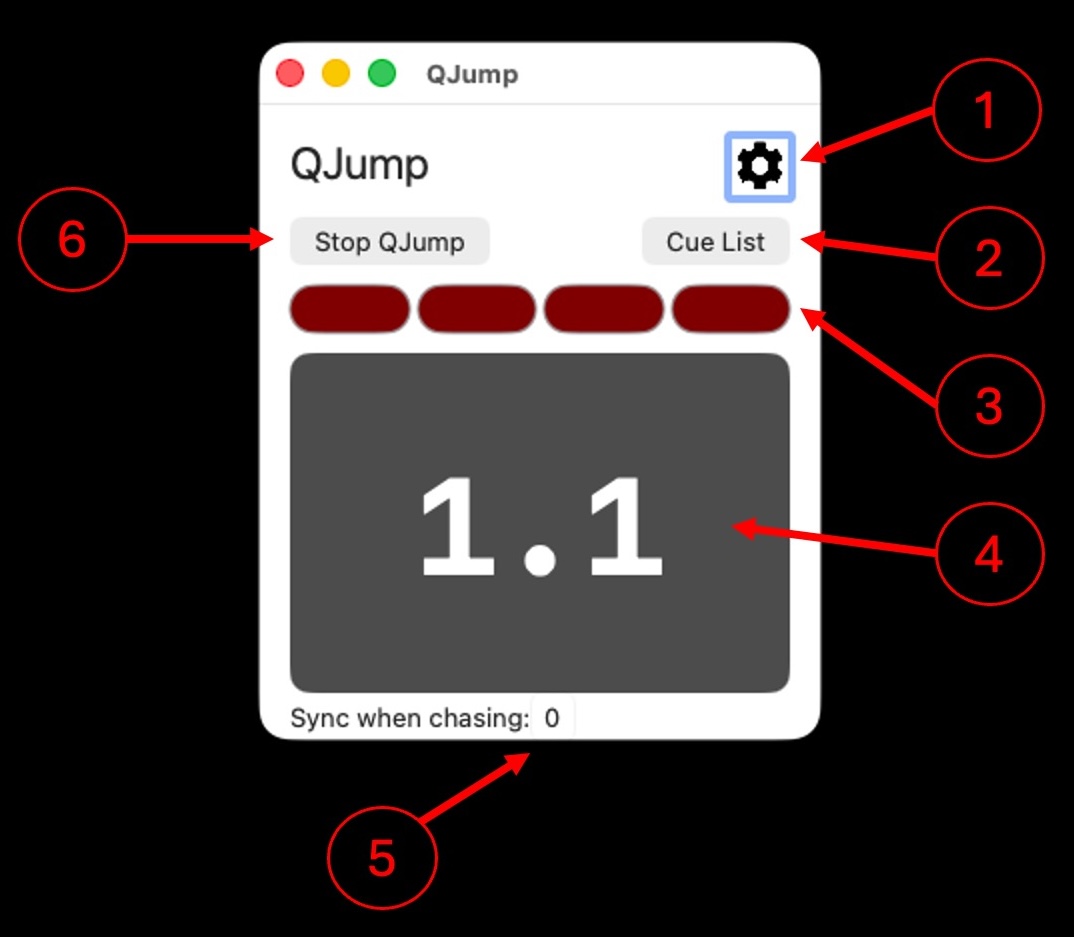
- Settings Button - See below
- View a window containing the cues that QJump thinks are valid QJump Cues. This is the cue list that any iOS devices will see.
- Visual representation of progress through each bar. The number of "pills" changes depending on beats in a bar.
- Bar and beat number read out. Clicking on this will also let you select a bar number directly from QJump.
- When QJump is "Chasing" a cue, it is sometimes delayed due to working out the tempo map. This is in seconds and only affects when QJump is chasing QLab, not when you are jumping to a bar in rehearsals.
- QJump regularly checks to see if the relevent cue in QLab is running. In an emergency, this button will stop QJump running.
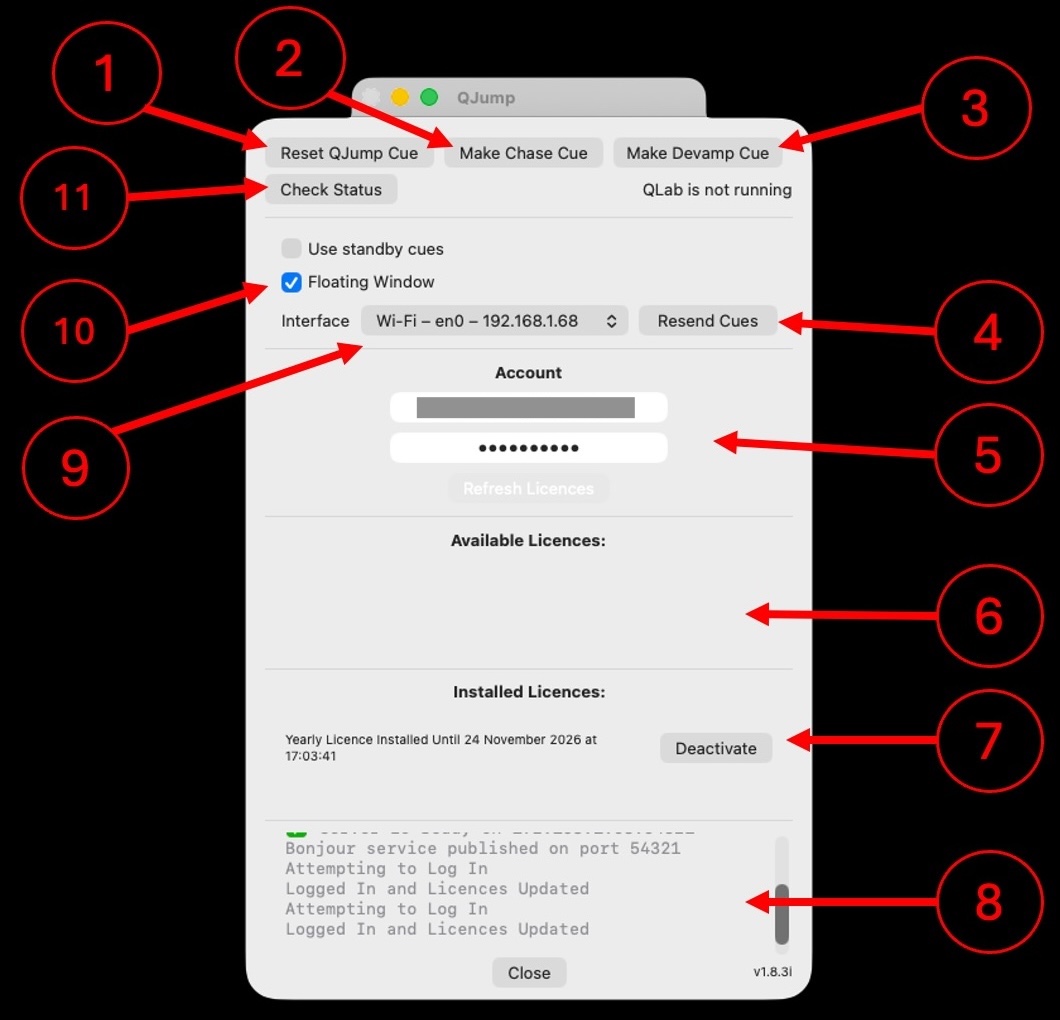
- Resets (or creates) the main QJump cue. The QLab session has to have this. Give this cue a hotkey trigger so you can easily select a musical cue and use the hotkey to jump to a bar number.
- This button will create a chase cue in QLab. If you want the bar numbers to run when you are in "performnace" mode - ie using the space bar or go button, you will need one of these chase cues in every green group.
- This button will create a QJump Devamp cue which needs to be triggered along with any QLab Devamp cues.
- If cues are added or deleted, this button can be used to push a new cue list to any connected iOS devices running QJump Remote
- Enter your username and password here to see any available licences to install.
- Available Licences will appear here. Click Install to install them on your machine
- Installed Licences will appear here. You can Deactivate them if needed and install them on a different machine.
- Console readout helps debug things like wrong passwords, no internet connection or seeing iOS devices connecting.
- Chose your network interface here to communicate with iOS devices running QJump Remote. This can be anything from Wifi and Ethernet adaptors to USB-C connection to a phone or a MacOS hotspot.
- Use Standby Cues will just load QLab to the right time but not start it. Use cases are an MD using a foot pedal to press start, or adding slices easily at a bar line.
- Check the status of QJump. QJump will report if QLab is open, and if it can see a valid QJump Cue in QLab.
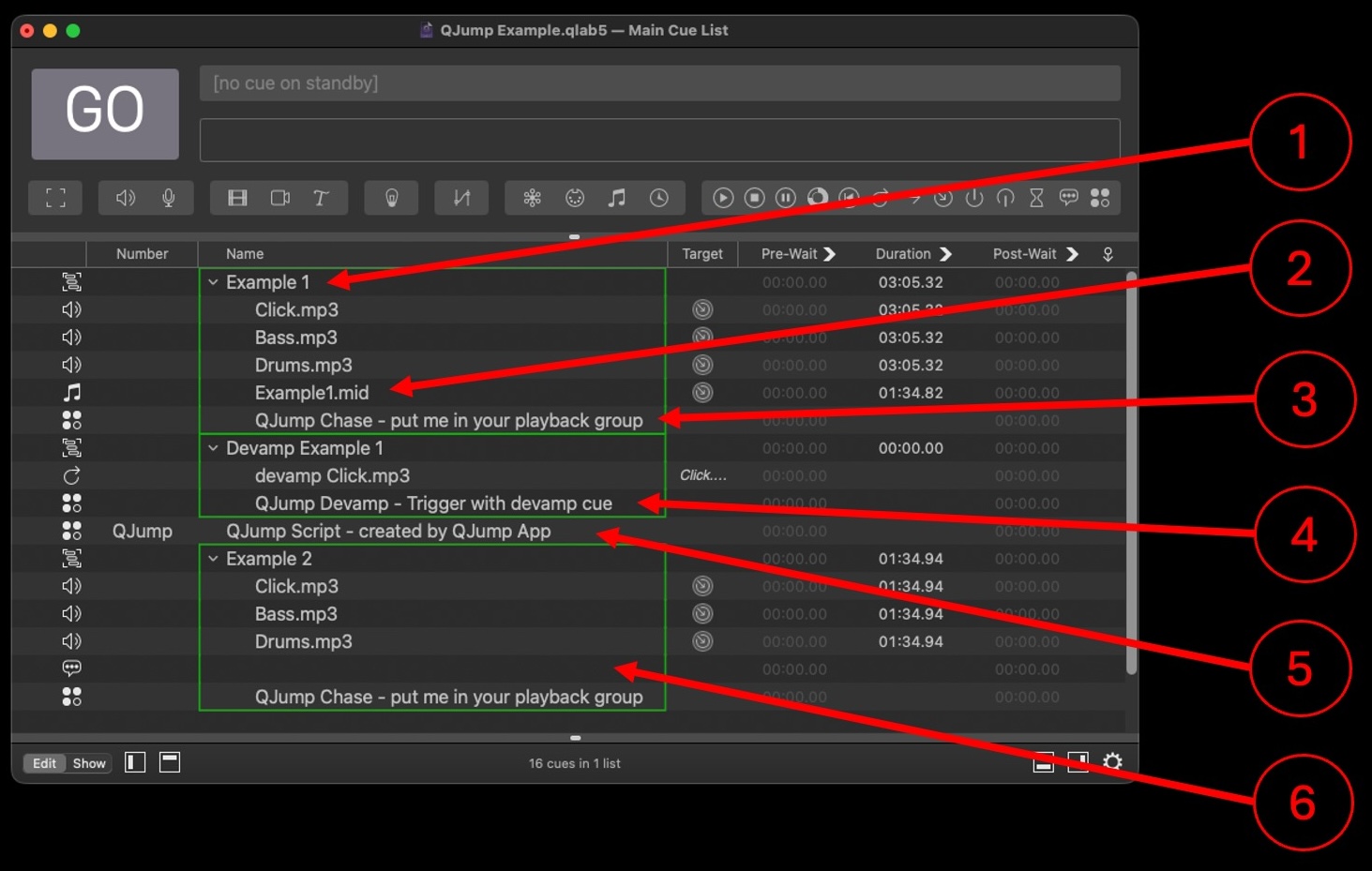
- QJump looks for a GROUP cue with audio inside it and EITHER a midi cue OR a MEMO cue. If these conditions arent met then QJump will ignore the group.
- If there are tempo or time signature changes, a MIDI file needs to be placed in the group with the tempo map. A number in the notes field of this cue tells QJUMP what the FIRST BAR of the piece is. If empty, it defaults to bar 1.
- This is the QJump Chase cue to let the bar counter run when in performance mode. It can be generated from the QJump settings window and copied and pasted into each group that needs it.
- This is the QJump Devamp cue which can be generated from the QJump Settings window and needs to fire alongside any regular devamp cue.
- This is the QJump Cue which needs to be present in the workspace somewhere for QJump to work. It can be generated from the settings window of QJump and should be given a hotkey trigger to easily fire from a bar number.
- If there are no tempo or time signature changes, a memo cue can be used to define the tempo and time signature. In the notes field of a memo cue, type start bar, tempo, numerator, denominator. For example 1, 100, 3, 4